Imagine that you recently started a job, and your first onboarding task is to watch an introduction video from HR. You download the video file to your computer: newonboardintro.mp4. You double-click the file and sit back to watch.
But nothing happens. You click it again, and this time, a window pops up, but you can’t get the “Play” button to do anything. Is your computer messed up? You click on another .mp4 file in your Downloads folder, and it works fine.
You try the training video again… and nothing. Two equal file extensions, two completely different results. Many assume that a file extension (the .mp4 in this case) tells them everything they need to know about a file and how it should work.
But there’s more to a file’s function, and it happens behind the scenes every time you click a file. To make sure you use your files properly, you’ll want to know a bit more about containers and codecs.
What is a Container?
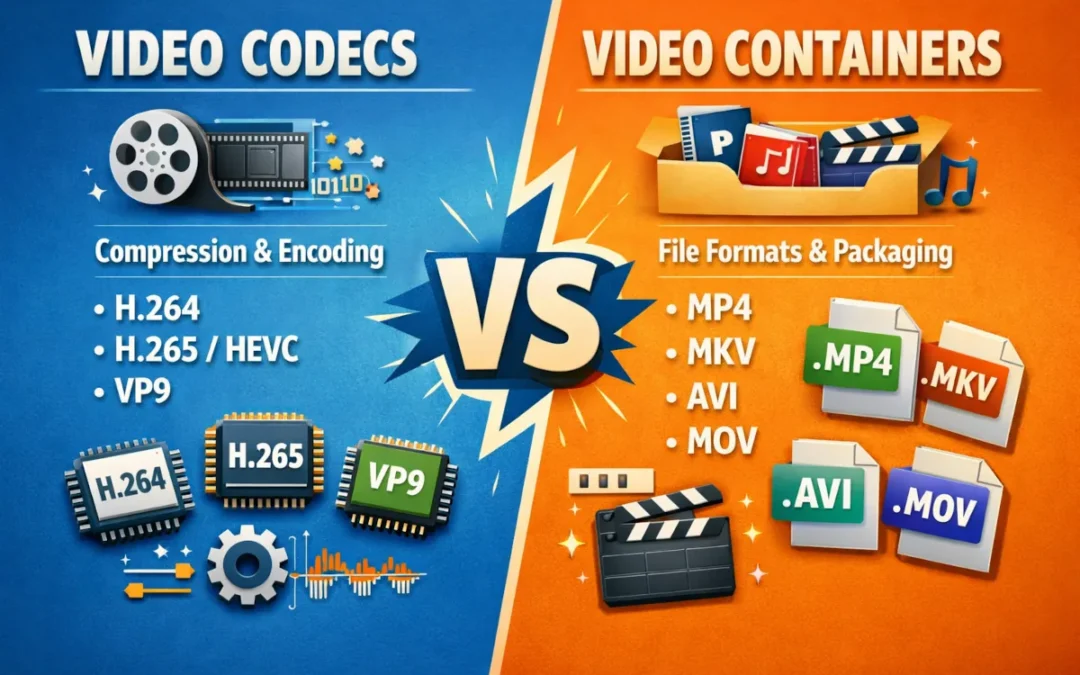
A container (sometimes called a wrapper) is the file format that packages multiple data streams into a single file. You can think of it as a shipping box. The container organizes and labels what’s inside, but it doesn’t control how the media is compressed.
A single container can hold a variety of pieces of data. For instance, a work training video container could hold:
• A video stream
• One or more audio tracks (such as separate tracks for different languages)
• Subtitle streams
• Chapter markers
• Metadata such as frame rate, resolution, and codec information (more on that below!)
You’ve probably already seen some container formats, such as MP4, MKV, AVI, MOV, or WebM. These containers define the structure and the organization of the file, like how the streams are interleaved (or arranged) and how they are synchronized.
But the container doesn’t determine the quality or compression of the media itself. That’s the codec’s responsibility.
What is a Codec?
Codec is short for coder/decoder. It’s the algorithm that is used to compress and decompress audio or video data. Going back to our shipping concept, if the container is the box, a codec is the way the items in the box are packed.
Are they packed loosely in bubble wrap? Tightly stored in styrofoam? That’s the codec’s job to determine. Codecs determine a file’s size, the visual and audio quality, compression efficiency, and the playback performance. In essence, how you experience the media within the file.
You may have seen some video codecs in the wild:
• H.264: The universal standard codec that’s been used for years.
• H.265 (HEVC): Can achieve roughly 25–50% better compression efficiency than H.264 at similar quality.
• VP9: Google’s open codec alternative.
• AV1: A next-generation, royalty-free codec.
Audio codecs include AAC, MP3, FLAC, Opus, Vorbis, and others.
The key here is this: two files can use the exact same container but have completely different codecs. This may explain why the same .mp4 extension can open on one device, but not on another.
How Do Media Containers and Media Codecs Work Together?
Naturally, codecs and containers must work together in order for a file to do what you want it to. The container holds the encoded streams (such as the video, audio, and subtitles) while the codec defines how those different streams are compressed.
During file creation, file encoding (which the codec handles) and multiplexing (the container’s work) all happen together or in a sequence. But it’s important to note that not all containers support all codecs.
MP4 is most commonly used with H.264, H.265, and AAC, though it supports additional codecs. But MKV is far more flexible than MP4, and can support a wide range of codecs, including H.264, HEVC, VP9, AV1, and more.
Here’s a quick reference to help you connect containers to codecs:
| Container | Common Video Codecs | Common Audio Codecs | Typical Use |
|---|---|---|---|
| MP4 | H.264, H.265, AV1 | AAC, MP3, Opus | Streaming, mobile, web |
| MKV | H.264, H.265, VP9, AV1 | AAC, FLAC, DTS, AC3 | Archival, home media |
| WebM | VP8, VP9, AV1 | Vorbis, Opus | Web/browser playback |
| AVI | Legacy codecs, DivX | MP3, PCM | Legacy files |
| MOV | H.264, ProRes | AAC, ALAC | Apple/editing workflows |
Why It Matters?
Why know all of this information about codecs and containers? It can be helpful when you have a file (such as newonboardintro.mp4) that gives you a “codec not supported” error rather than playing as expected. The container is recognized, but the player on your device can’t decode the stream inside.
Why does this happen? Typically, it’s because the required codec isn’t installed or supported by the player. In some cases, the file uses a newer codec that older software or hardware can’t handle.
Luckily, the fixes are usually straightforward:
• You can switch to a file player that is designed to handle more codecs. For example, VLC handles the most common codecs and a few less common ones.
• You can install a codec pack
• You can convert your file to a universally supported codec such as H.264 (remember, you can’t just change the file extension!)
• You may need to update your video player to a newer version
In short, when a video file won’t play, it’s likely an issue with the codec, not the container.
Containers and codecs have changed over the years, MPEG-1 was used for video CDs, while MPEG-2 became the standard for DVDs and broadcast video. H.264 was first standardized in 2003 and became the dominant web video codec over the next few years.
It’s had staying power too, with H.264 still being used by streaming providers such as YouTube and Netflix. As content quality improves (e.g., with the rise of 4K and 8K), platforms are adopting H.265 and AV1 to improve compression efficiency.
There’s one more concept worth knowing: when you need to change a container without touching the codec, you’ll use a process called transmuxing. If you need to re-encode with a completely different codec, you’ll need transcoding.
Transmuxing is quick, while transcoding can be slow and data-heavy. Knowing which you need can save you a lot of time and effort!
In short, the container is the box, and the codec is how the contents in the box are packed.
As you choose a format, consider the codec and container, and how you may need to switch players or files to ensure they work properly. It could make the difference between actually watching that required on-boarding training from HR and sitting watching a blank screen!