I once spent twenty minutes trying to figure out why a video file refused to play, only to realize someone had renamed it from .mov to .mp4 thinking that would magically convert it. It did not.
The file extension was lying about what was actually inside, and the media player believed the lie right up until it tried to read the data. That mismatch between what a file claims to be and what it actually contains causes more everyday confusion than almost anything else in computing.
It is behind the file that opens in the wrong program, the download that refuses to open at all, and the moment your computer asks “which program?” when you assumed it would just know.
Files are built of several different interconnected parts, and if your file isn’t opening as expected, you likely have a file extension problem.
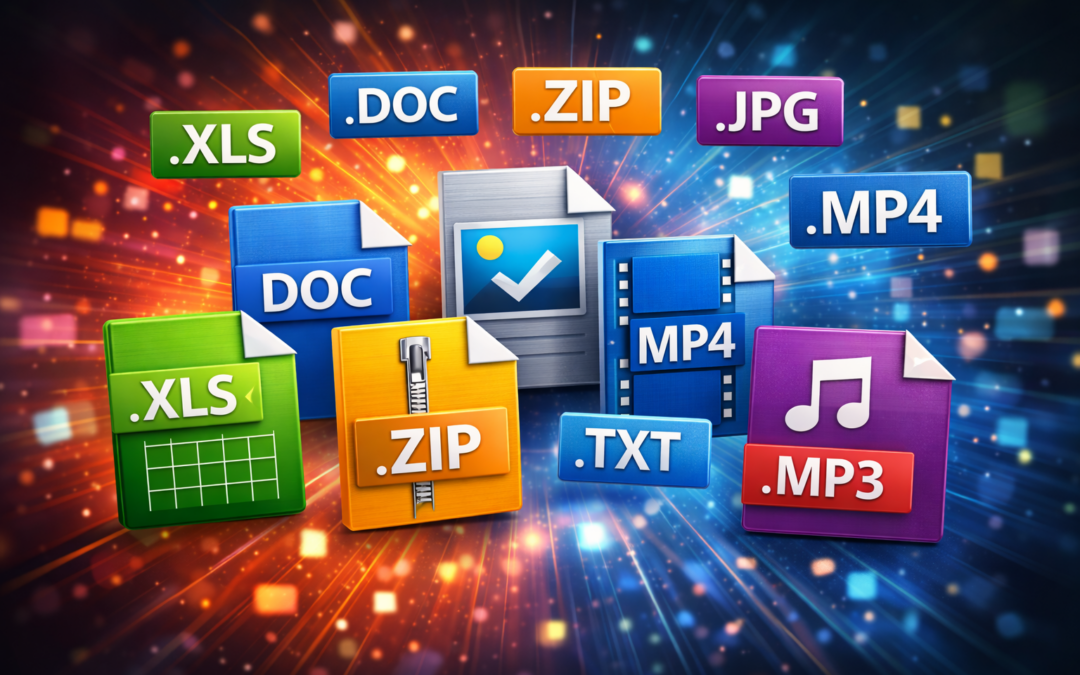
File extensions are the short suffixes at the end of file names. Some of the most common you’ve likely seen include:
- .jpg
- .docx
- .mp3
These short labels are small, but are integral to how the file is used by your device. Knowing what they are (and what they should be) can help you know why your files may or may not be working.
It can also help you protect yourself from clicking on malicious links or downloading dangerous files that can damage your device and compromise your security.
What Is A File Extension?
A file extension is the end of a file name, typically in the format of “filename.extension”. The type of extension tells you the type of file you’re working with, but more importantly, it tells your computer or other device what to “do” with the file when it’s activated.
When you double-click a file, your device’s operating system goes to work, checking the extension and deciding what to do next. For instance, a .pdf file will be opened by your default PDF viewer. A .mp3 is opened in your music app.
The extension also determines what icon you’ll see and how your device interprets the data in the file itself. Think of it as a package with a label. The file is the package, and the file extension is a label that says “this is a document!” or “this is a photo!”
Does Changing a File Extension Mess Up the File?
Here is a mistake I have watched people make more than once, and it always makes sense in theory right up until it fails. You have a PowerPoint slideshow that you present in a meeting. Your manager then asks for you to send them the presentation in a PDF file.
So you rename the file from slides.pptx (a PowerPoint extension) to slides.pdf (the PDF file extension). But when your manager tries to open the file, nothing happens. The problem is that you’ve changed the name of the file, but not the data inside the file itself. A PDF viewer will try to open the slides.pdf file, but can’t do anything with it.
The good news is that the file itself is not damaged. The data inside is exactly as it was before the rename. In most cases, you just need to revert the file back to its original name and extension, then open it in PowerPoint and use the export feature to create an actual PDF. The export process rewrites the data into the PDF structure, which is what renaming alone can never do.
When It’s OK to Change an Extension (and How to Do It Safely)
There may be times when you need to change a file’s extension. And in some cases, a renamed file will still open normally, though not for the reason most people assume.
For example, if you rename photo.jpg to photo.png, most image viewers will still open it without complaint. This is not because the rename converted anything.
Image viewers largely ignore the extension and read the file’s actual byte signature, the magic number covered in our article on how files work, to determine what the file really is.
The data inside is still JPEG data, the viewer recognizes it as JPEG data, and it displays normally despite the mislabeled name.
However, if you tried to change photo.jpg into a document file (photo.docx), the file won’t open properly. The image is still there, but your device can’t do anything with it.
When you need to change a file, you can check the software or program that opens the file and use the “export” or “Save As” feature to change the file. But take note: renaming never changes what a file actually is.
When you genuinely need a different format, the export or Save As feature is doing real conversion work, rewriting the data into the new structure. That is the difference between changing the label on the package and changing the contents inside it.
A Note About Viruses, Phishing, and Other Security Risks
One reason to know how file extensions work is the security aspect. Every day, individuals download viruses or give hackers access to their devices by clicking on nefarious files.
A common file extension risk is the “double extension”. For example, you may receive an email with an attached file titled invoice.pdf.exe, a file that may look like a PDF file, but is actually an executable file that runs a program when clicked.
I have come closer to falling for this than I would like to admit. The icon looked right, the name looked right, and the only giveaway was the full extension hiding at the end of a long file name.
Windows hides known extensions by default, which makes this trick far more effective than it should be. Turning on the option to show file extensions in your file explorer settings is one of the simplest security improvements you can make, because it removes the disguise entirely.
Always be extra cautious when receiving files from unexpected emails. If you didn’t expect to receive the file or if something seems out of place, assume it’s dangerous to open. Antivirus software can also help you stay protected from dangerous files.
The Most Common File Extensions
Here are some of the most common file extensions and what they are used for:
Documents
| Extension | What It Is | Opens With |
|---|---|---|
| Portable Document Format | Adobe Acrobat, web browsers | |
| .docx | Microsoft Word document | Word, Google Docs, LibreOffice |
| .pptx | PowerPoint presentation | PowerPoint, Google Slides, Keynote |
Images
| Extension | What It Is | Opens With |
|---|---|---|
| .jpg | Compressed photo format | Photos app, browsers, Photoshop |
| .png | Image with transparency | Photos app, browsers, Photoshop |
| .gif | Animated or static image | Web browsers, image viewers |
Videos
| Extension | What It Is | Opens With |
|---|---|---|
| .mp4 | Standard video format | VLC, QuickTime, browsers |
| .mov | Apple QuickTime video | QuickTime, VLC, iMovie |
| .avi | Older Windows video | VLC, Windows Media Player |
Audio
| Extension | What It Is | Opens With |
|---|---|---|
| .mp3 | Compressed audio file | Spotify, iTunes, VLC |
| .wav | Uncompressed audio | VLC, Audacity, media players |
| .m4a | Apple audio format | iTunes, Apple Music, VLC |
What This Actually Saves You From
Knowing how file extensions work saves you from two specific problems. The first is wasted time, like renaming a file and wondering why it will not open, or hunting for the right program when your computer asks which one to use.
The second is a genuine security risk, because the double extension trick still catches people every single day. You do not need to memorize every extension that exists.
Get to know the main ones in the file types you actually use, such as documents, images, videos, and audio. The tables above cover most of what you will run into, and the rest you can look up the moment you need to.
The one habit worth building today: when a file does not behave the way you expect, check the extension first. It is the fastest diagnostic step available, and it solves the problem more often than you would think.